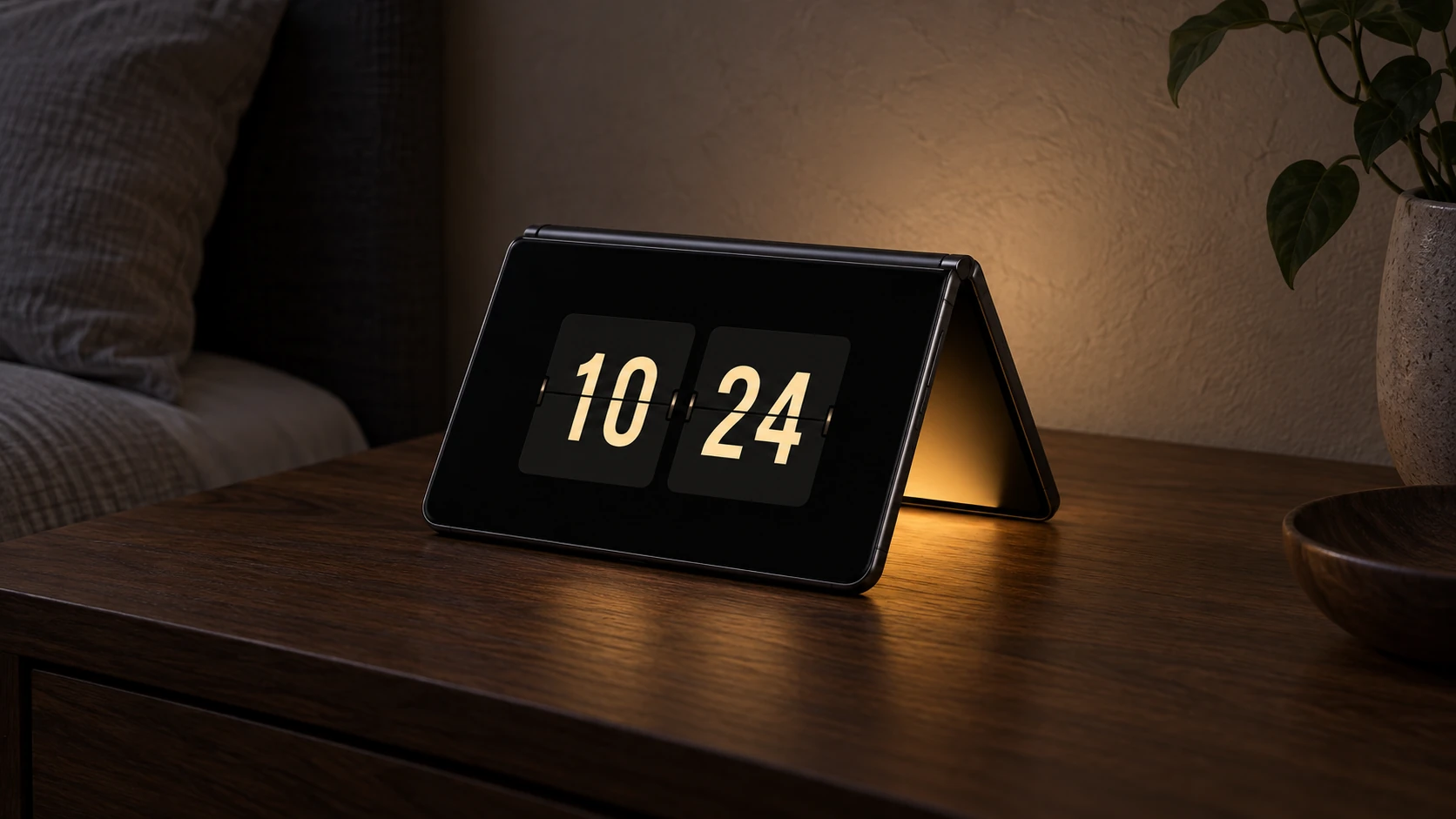
A foldable phone has a large screen that usually goes dark when the cover screen takes over. We wanted to use that inner display to cast a little light onto the desk while the outer screen kept doing the useful part: showing the time.
That became Foldable ambient light in FlipClock. On supported Android foldables, the two displays work together: a flip clock faces you, and a colored glow from the inner display reaches the surface around the phone. With the phone positioned so that the light falls onto a nearby surface, the reflection creates the indirect lighting effect.
The hero above is an AI-generated concept illustration of that setup. Device geometry, the clock interface, and the amount of visible light vary in actual use.
The idea came from iPhone Duo's StandBy mode
The inspiration was iPhone Duo's StandBy mode. In its iPhone Duo announcement, Apple describes StandBy running on either the inner or outer display, even without charging. The idea of a phone taking on a useful role when you set it down made us look again at the screens already available on a foldable.
For FlipClock, we focused on a clock and the space immediately around it. The cover screen already makes a good desk clock. The inner screen offers a broad light source that can face the table, away from your direct line of sight. Combining those two roles gives the folded shape a practical purpose.
This is our Android implementation of that idea. Its behavior follows the display capabilities that each Android device exposes.
Half a screen, fading toward black
The current inner-screen layout has two parts. The leftmost 50% contains a horizontal gradient, starting with the theme color at the edge and fading to black toward the center. The remaining half stays completely black.
The light takes its hue from the selected clock theme. A neutral theme produces white light; a colored theme produces a matching hue. Brightness is a separate control, so you can keep the color you chose while changing how much light the display contributes.
The gradient makes the illuminated region taper off. The physical placement does the rest: the angle of the fold, the distance to the table or wall, and the surface itself all affect the reflected glow. A dark surface absorbs more of the effect, and a brightly lit room makes it harder to notice. This is a small ambient accent for the area beside the phone.
Getting the placement right took several revisions. Our early layouts moved between different halves and a central band before settling on the current half-screen gradient. A direction that looks obvious in a screenshot becomes less obvious once the cover clock is rotated and the inner screen faces the other way. We had to check the inner output and the outer clock separately to understand the physical result.
Android has to allow both displays to stay active
Drawing the gradient is straightforward. Establishing a session in which both physical panels can display content is the part controlled by the device.
FlipClock uses Jetpack WindowManager's WindowAreaController and checks the OPERATION_PRESENT_ON_AREA capability. When it is available, the app requests a dual-screen session with presentContentOnWindowArea(), then places the cover clock into the returned presenter with setContentView(). The main activity supplies the inner-screen light. These are the mechanisms described in Android's foldable display modes guide.
Creating a normal Presentation window alone does not establish that dual-screen session. We also avoid treating a fixed display ID as proof that a particular panel is the cover or inner screen.
That distinction appears in settings. The feature is off by default. While support is being checked, it cannot be enabled. A device that does not expose the required dual-screen capability shows an unavailable switch. A supported device can also be temporarily unable to start the session because of its current posture.
When you enable the option, FlipClock shows a short activation guide: close settings, fully unfold the phone, then fold it back. Follow any system prompts as well. The precise usable posture depends on the device and its firmware; completely closed operation is not guaranteed across foldables.
A minute of light, then a black interval
Continuous illumination felt like too much to make the default. The default schedule illuminates the inner screen immediately for one minute, then repeats for one minute every ten minutes, measured from the start of the lighting cycle.
For example, it lights during minutes 0–1, 10–11, and 20–21. Between those intervals, the entire inner display renders black while the cover clock continues to show the time.
The settings offer a few concrete controls:
- Inner brightness: 1–100%, with 100% as the initial setting. Lower it to suit the room and the nearby surface.
- Lighting mode: Always on, or Turn on periodically. Periodic lighting is the default.
- Interval: every 5, 10, or 30 minutes.
- On duration: 1 or 2 minutes at the beginning of each interval.
Changing the mode, interval, or duration starts a new cycle immediately. Adjusting brightness keeps the existing timing. The cycle uses Android's monotonic SystemClock.elapsedRealtime(), so changing the displayed clock time does not move the lighting schedule.
The black interval is deliberately described as black output, rather than a command to power the panel off. Periodic lighting limits the time the colored region is illuminated, but it is not a guarantee against OLED image retention or a measured battery-saving claim. Always on keeps that region illuminated for the active session. Actual brightness can still be limited by the phone's display, thermal, and battery policies.
Trying it on your desk
Open FlipClock and choose a theme whose color you want to see reflected around the phone. In settings, enable Foldable ambient light, read the activation guide, and set the inner brightness and lighting mode. Close settings before following the unfold-and-fold instructions.
Once the cover clock and inner light are active, position the phone securely so the inner light reaches the table or a nearby wall. Start in a dim room, where a modest amount of reflected light is easier to see. If the glow disappears after a minute while the clock stays visible, the default periodic schedule is working.
You can reopen settings from the cover clock to adjust the effect or turn it off. Leaving the app or pausing the main activity ends the dual-screen session, cancels the lighting schedule, and restores the window's previous brightness setting.
The remaining limit is device support
This feature belongs to the foreground clock experience. FlipClock's system screensaver and separate lock-screen activity do not start the same dual-screen session.
We also cannot turn a generic foldable check into a promise that every Fold or Flip model will work. The device must expose the necessary presentation capability, and its current posture must allow the session. Rendering tests can verify the gradient and black area; they cannot prove that two physical panels illuminate correctly on another manufacturer's hardware. Broader device coverage remains a separate piece of work.