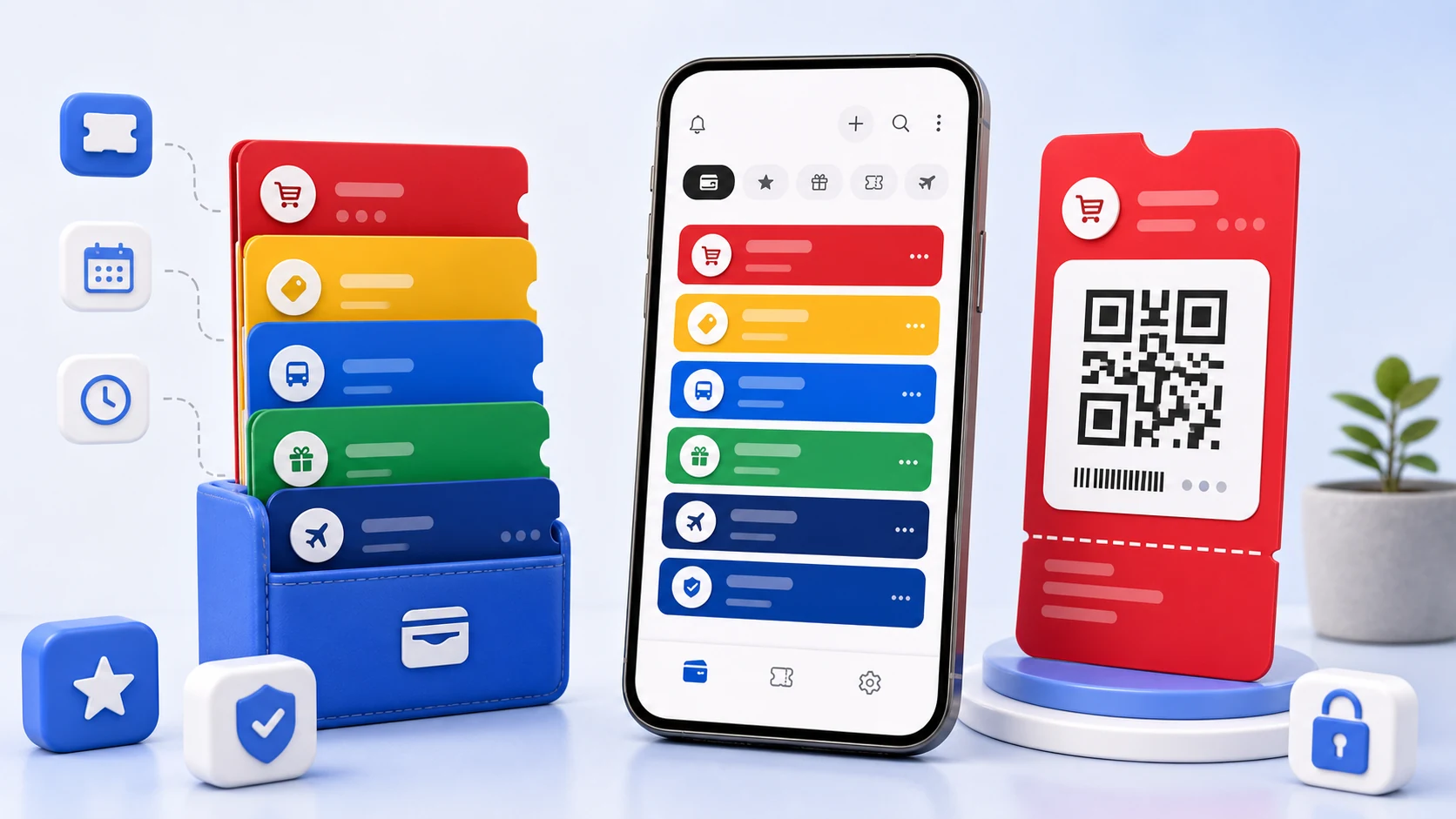
A barcode is a series of bars and spaces of specific relative widths. A scanner measures those widths and decodes them. Everything about rendering one on a phone follows from that sentence, and almost every convenient way of drawing an image gets it wrong.
Fractional pixels are the main problem
The narrowest element in a barcode — the module — defines the unit that every other width is a multiple of. A code might be 95 modules wide. Your card layout might give it 340 pixels.
340 divided by 95 is 3.578. There is no such thing as a 3.578-pixel-wide bar, so something has to round, and the rounding is not uniform: some bars land on 3 pixels, some on 4. A scanner measuring those widths sees a pattern whose ratios do not match any legal encoding.
This produces the most frustrating failure mode there is. The code looks perfect. It is symmetrical, sharp, obviously a barcode. And the scanner sits there.
The fix is to give up on filling the available width. Compute the largest whole number of pixels per module that fits, render at exactly that size, and centre the result. The code is then narrower than the space allotted to it, and every bar is an exact multiple of a whole pixel.
We render at the display's actual pixel density rather than in layout units, because a code that is pixel-exact in density-independent units is not pixel-exact on screen. The same reasoning applies to any scaling in the view hierarchy: the barcode bitmap is drawn at its natural size, never stretched to fit.
Anti-aliasing is helping and should not be
Every drawing API smooths edges by default. It makes text and shapes look better and it is exactly wrong here.
A smoothed bar edge is a gradient over a pixel or two. The scanner's threshold decides where the bar ends, and a gradient means that boundary moves depending on lighting and exposure. Bar widths become inconsistent between reads.
Barcode rendering turns filtering and anti-aliasing off. Hard edges, no interpolation. The result looks slightly cruder to a human and considerably clearer to a decoder.
The quiet zone is part of the code
Scanners locate a barcode by finding a clear margin around it. The specifications call this the quiet zone and give it a minimum width in modules — commonly around ten for linear codes.
Designers remove it, every time, because a barcode with a large white margin looks like a mistake. The card looks tidier with the code running edge to edge and it reads about half as often.
The quiet zone is rendered as part of the barcode bitmap rather than left to the layout's padding. Anything that is the layout's responsibility can be adjusted away by a later change to a card design, and this one cannot be adjusted away.
Dark mode inverts your barcode
A code drawn as a themed foreground colour on a themed background becomes light-on-dark when the user switches to dark mode.
Scanners expect dark bars on a light background. Some fail on an inverted code. Some, worse, decode it as a different value, because inverting the pattern can produce another legal one.
Codes are always black on white. The card around it follows the theme; the code does not. This looks slightly odd on a dark card and it is not negotiable.
The same applies to the transient brightness boost while a code is on screen. Store scanners are cameras and a dim screen under fluorescent lighting is a poor target. The card screen raises brightness for its own window while a code is displayed, and the system restores it on the way out.
Laser scanners cannot read your phone at all
Worth knowing, because it is a failure that no app can fix.
Older handheld laser scanners work by reflecting a laser off a printed surface and measuring the returned light. A phone screen emits light rather than reflecting it, and a laser scanner pointed at one typically gets nothing. Camera-based imagers, which are what most modern counters use, read screens fine.
If a particular shop consistently fails to read your phone while reading printed cards without difficulty, the scanner is probably the reason and no amount of brightness will help. Carry the physical card for that one.
Screen protectors — particularly matte ones and heavily scratched ones — also diffuse enough light to cause failures. This is rare and it is real.
Being ready before you need it
The counter is the wrong place to organise anything. Everything below is about the minute before you leave.
Name for recognition under pressure. The name is what you scan for while a queue moves. The shop's actual name beats a category, and beats a name you invented while feeling organised.
Order by how you will use them, not alphabetically. For a specific outing, the order is usually transport, then ticket, then membership, then coupon. If your wallet reflects that, using it is a sequence rather than a search.
Check before leaving. Open the pass you are going to need and confirm it renders, is current, and is the right one. Under a minute, and it moves the discovery of a problem from the gate to your kitchen.
Assume no signal at the venue. Event venues are full of phones and short of bandwidth. A pass that needs a network request to display is a pass that will not display. Anything stored locally will.
Set expiry dates on temporary passes. Not for the reminder — for the list. Expired items mixed with live ones make every item require thought.
Put the conditions in the note. "Seomyeon branch only." "Show with ID." "Not with other offers." These are the details that fail at a counter and that nobody remembers three weeks after the coupon arrived.
Test a new pass once at a low-stakes moment. The first scan of a newly added card should not be the one that matters.
What to keep on paper
For anything where failure is expensive — a boarding pass, an event you travelled to, a gate that only opens for a valid scan — the phone is a convenience and not a plan. Battery, a scanner that cannot read screens, an app updating itself at the wrong moment: none of these are likely and all of them happen.
Where the issuer offers a printed or PDF alternative for something that matters, take it. A wallet app that suggests otherwise is selling you a single point of failure.