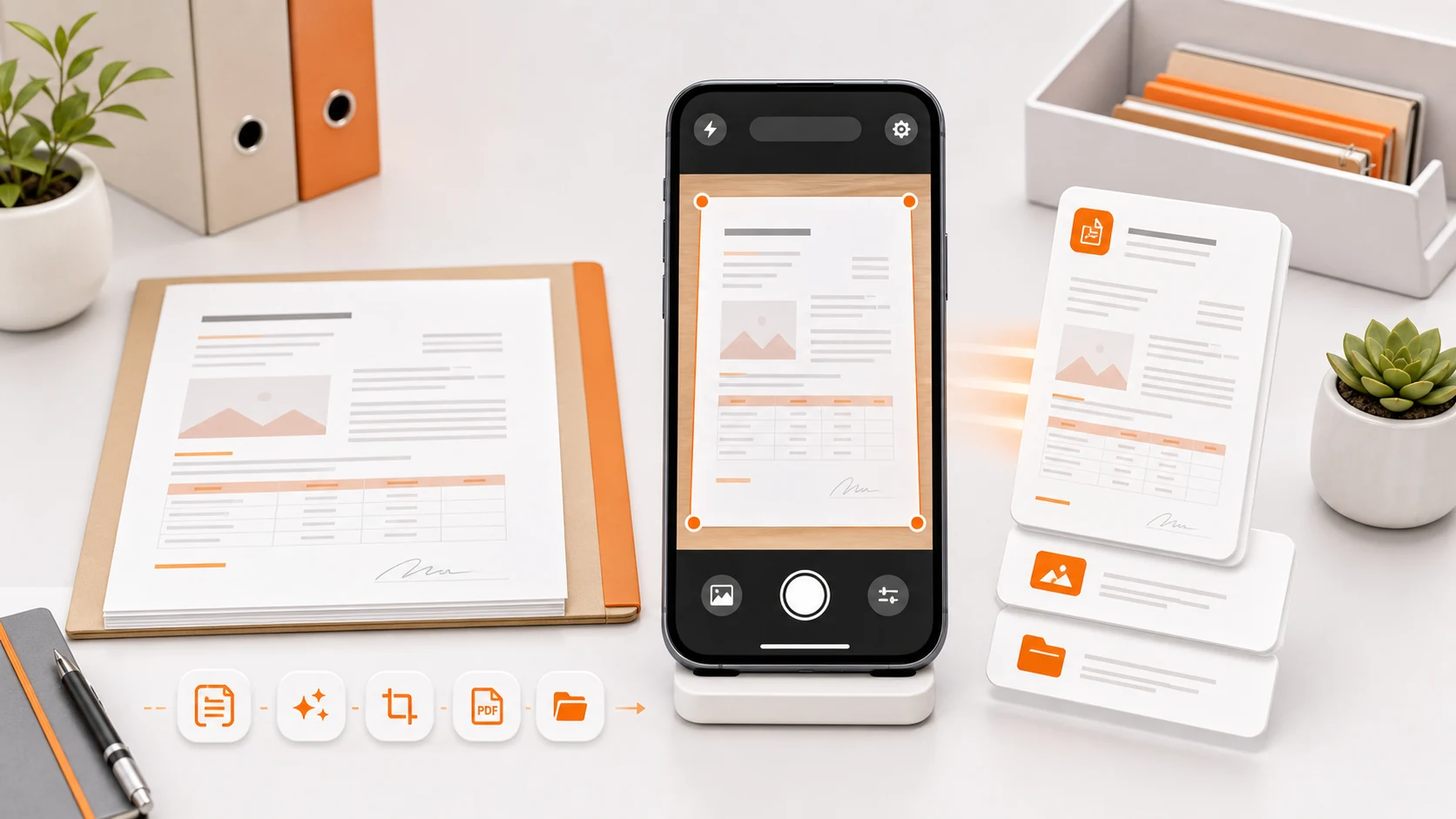
The most common support message about DocScanner is some version of "it did not find my document." The second most common is "it found the wrong thing." Both come from the same place, and it is worth explaining how page detection actually works, because once you know, the fix is obvious and takes two seconds.
Detection is contour finding, not document understanding
DocScanner does not know what a document is. It has no concept of paper, text, or receipts. What it does is:
- Downscale the frame, because working at full resolution is slow and the extra pixels do not help.
- Convert to greyscale and blur slightly to suppress noise and paper texture.
- Run edge detection to produce a map of where brightness changes sharply.
- Find contours in that edge map — closed shapes.
- Approximate each contour with a simpler polygon and keep the ones that come out with four sides.
- Score the four-sided candidates by area, how convex they are, and how close to right-angled the corners are.
- Take the best one and treat it as the page.
Everything about this is geometry. The word "document" never appears. Which means a document is anything that presents as a large, convex, four-cornered region with a strong edge, and a document is *not* anything that fails to do that — regardless of how obviously it is a document to a human looking at the same frame.
The four ways it goes wrong
No contrast at the boundary. White paper on a white desk produces no strong brightness change at the page edge, so there is no contour to find. This is by a wide margin the most common failure, and it is the one that surprises people most, because the page is perfectly visible to them. Their visual system is doing work the algorithm does not do.
A better rectangle in frame. Detection picks the strongest four-sided candidate, not the one you meant. A laptop, a placemat, a tabletop edge, a book, or a window in the background can all score higher than the sheet of paper. The classic version: a receipt lying on a dark notebook — the notebook wins, and the scan is of the notebook.
A corner out of frame. With three corners visible the contour is not closed, the approximation does not yield four sides, and detection finds nothing. Framing tightly is the usual cause, and it also removes the pixels perspective correction would have needed.
Texture the edge detector likes. A heavily patterned surface generates edges everywhere. The contour finder gets thousands of candidates and the scoring has to sift through noise. Wood grain, tablecloths, and printed placemats are the usual offenders.
There is also a category we handle rather than fail on: folded corners and curled receipts. The page's actual boundary is not a quadrilateral, so the best four-sided fit will cut through the fold. Flattening the paper is faster than correcting it afterwards.
Perspective correction and what it cannot recover
Once the four corners are known, the page is warped into a rectangle using a perspective transform. This is what turns a photograph taken at an angle into something that looks scanned.
The transform is exact in geometry and lossy in detail. If you shoot a page from a sharp angle, the far edge occupies far fewer pixels than the near edge. Warping stretches those few pixels to fill the same width as the near edge. The geometry is now correct and the top of the page is blurrier than the bottom — usually just enough to make small print at the top unreadable while the bottom is fine.
This is why "hold the phone parallel to the page" is real advice and not a formality. It is the difference between correction that costs nothing and correction that costs you the top of the document.
Motion blur is the defect you will not notice
Of everything that ruins a scan, blur is the one that most reliably escapes review, because a blurry page looks fine at thumbnail size and terrible at full size.
Its cause is usually not shaky hands. It is exposure time. In dim light the camera compensates by leaving the shutter open longer, and a longer exposure means normal hand movement smears the image. Better lighting reduces blur more than steadier hands do, because it lets the camera use a shorter exposure.
DocScanner does two things about this. It waits for the frame to stabilise before capturing when auto-capture is on, rather than firing the instant a quadrilateral is detected. And the review step shows the page large enough that blur is actually visible, which sounds trivial and is the only reason people catch it.
The routine
Every item here maps to something above.
Change the surface before changing anything else. If detection is failing, this is the fix, and it works essentially every time. A dark desk, a book cover, a bag, a jacket — anything that is not the same colour as the paper. Two seconds, and it turns a fight with the app into a scan.
Clear the frame of competing rectangles. Move the laptop out of shot. This is the fix for "it detected the wrong thing," and it is faster than adjusting corners by hand.
Leave a margin. All four corners, with room around them.
Get the phone parallel. Directly above the page, not leaning over it.
Prefer diffuse light. Near a window is better than under a single lamp. If your own shadow is falling across the page, move rather than raising the phone higher.
Tilt a few degrees for glossy or thermal paper. Enough to move the reflection off the text, not enough to introduce real perspective.
Scan multi-page documents in order, in one session. Reordering is a step where mistakes happen; not needing it is better than doing it carefully.
Review at full size before saving. Check the corners, then check the smallest text you would ever need to read. If you would not be comfortable reading it in six months, retake it now while the paper is still there.
The three-pass version for documents that matter
For anything going to an insurer, an employer, a landlord, or a government office:
First pass — set up. Surface, light, flatten the paper, clear the frame. Do this once for the whole document rather than per page.
Second pass — capture everything in order. Do not review between pages; it breaks the rhythm and encourages skipping.
Third pass — review the assembled document. Page order, orientation, every corner, and the specific fields that matter: the date, the total, the signature, the reference number, the fine print at the bottom that turns out to be the warranty terms.
For everyday paper, collapse it: prepare, scan, glance, share. The three-pass version is for documents where a re-scan is impossible.
What we would like to fix
Detection could be substantially better with a learned model rather than pure contour finding — the low-contrast case is exactly where a model trained on documents outperforms geometry, because it has learned what paper looks like rather than what a rectangle looks like. That is a real piece of work and we have not done it.
In the meantime the honest position is that the manual corner adjustment exists, it is reliable, and the failure is visible rather than silent. An app that silently scans the notebook underneath your receipt would be worse than one that asks.