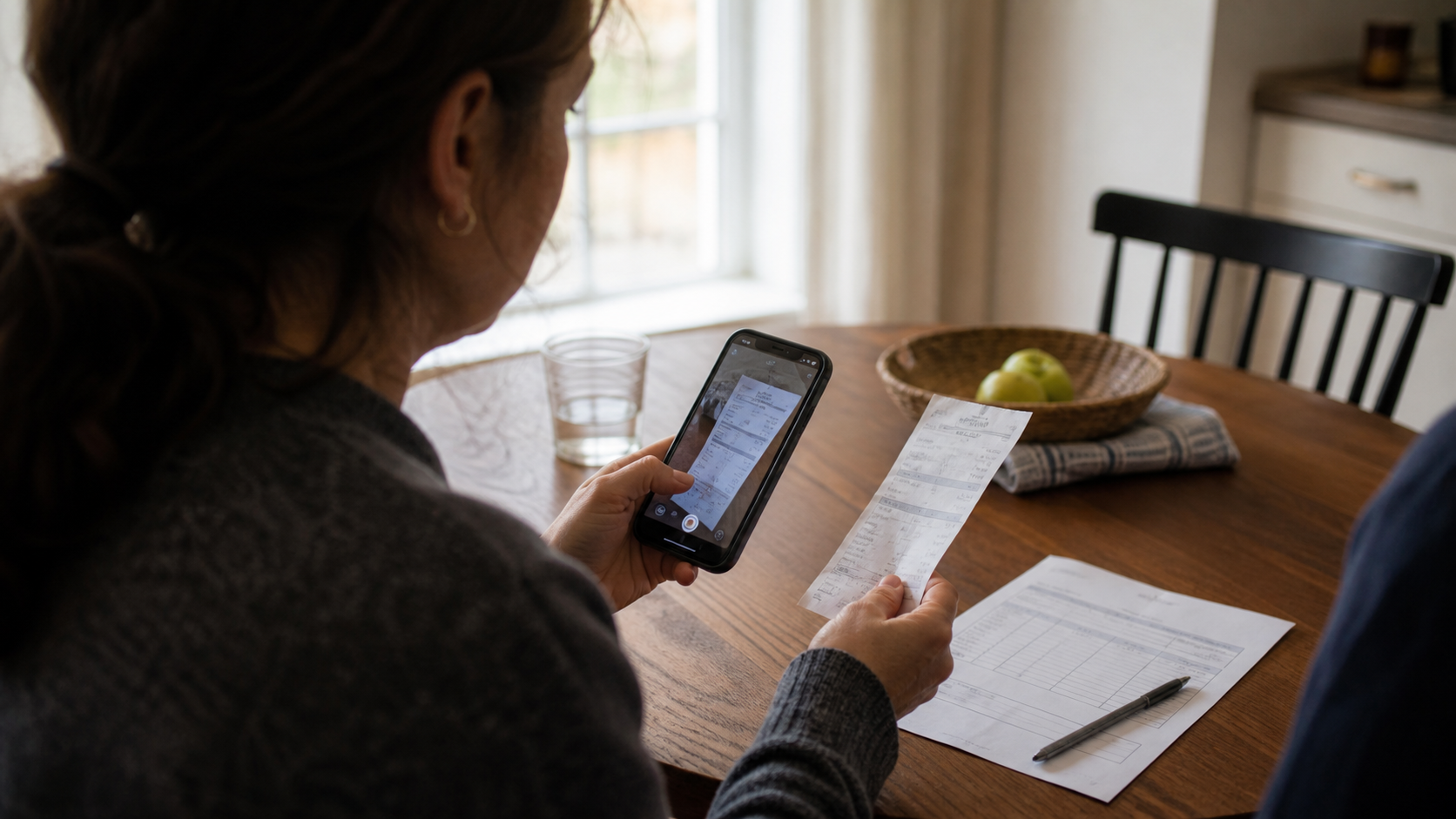
Text recognition is one of the few features where users have a precise expectation and no interest in the implementation. It should read the page. That is the whole specification.
The implementation refuses to cooperate with it, because on-device OCR does not work on "text." It works on scripts, and it ships as separate models per script.
One model per script
The on-device recognisers available to an Android app come as distinct models: one for Latin, one for Korean, one for Japanese, one for Chinese, one for Devanagari. You instantiate a client for a script and feed it an image.
The Korean model handles Latin characters too, because Korean documents contain them constantly. But it is a Korean model. On a page that is mostly English, it is not the strongest choice. And the Latin model on a page of Hangul does not return an error — it returns confident nonsense, mapping Korean glyphs onto whatever Latin shapes they most resemble.
Now consider an ordinary Busan receipt. The store name might be in English. The address is in Korean. The product lines are a mix, because imported goods keep their original names. The card footer is in English. The tax line is in Korean.
There is no correct single answer to "which model should we use for this page."
What we do
DocScanner runs more than one recogniser over the page and merges the results at block level rather than page level.
Each recogniser returns a structure of blocks, lines, and elements with bounding boxes and confidence. Because the geometry is comparable between runs, results from different models can be aligned spatially: this region of the page was read one way by the Korean model and another way by the Latin model, and we choose per region rather than per document.
The choice uses confidence, but not only confidence — a model reading a script it was not trained for can be confidently wrong, so raw confidence is not a sufficient discriminator on its own. Script plausibility of the returned characters matters too: a run of Latin output for a region where another model returned Hangul with comparable confidence is suspicious in a way the numbers alone do not capture.
The cost is real: multiple passes over the same image take longer than one, and the models have to be present on the device. We run the extra passes only when a first pass suggests mixed content rather than on every scan, which keeps the common single-script case fast.
The rotation bug
Before any of this worked, we spent a while convinced our OCR integration was fundamentally broken, because results on some captures were garbage while identical-looking captures were fine.
It was image rotation. A camera frame on Android arrives with a rotation value in its metadata rather than pre-rotated pixels — the sensor has a fixed orientation and the frame is tagged with how far it needs to be turned to be upright. If you hand the buffer to a recogniser without applying that rotation, the model receives text on its side.
OCR models are not rotation invariant. Sideways text is not slightly harder for them; it is a different problem, and the output is meaningless.
The reason it was intermittent is that it depended on how the phone was held at capture, which we were not varying systematically in testing. Once we noticed the correlation the fix was one line — pass the rotation degrees along with the image — and the class of "OCR is unreliable" reports disappeared.
The lesson we took from it is smaller than the bug: when results are inconsistent across seemingly identical inputs, look at what is different about the *capture*, not about the content.
Reading order is a separate problem
Even with every character correct, a receipt does not read top to bottom.
Receipts are effectively two columns — an item on the left, a price on the right — and the recogniser returns blocks in an order driven by geometry, not by meaning. Naively concatenating them gives you every item name followed by every price, or an interleaving that pairs the wrong price with the wrong item.
We use the bounding boxes to reconstruct rows: blocks whose vertical ranges overlap substantially belong to the same line, ordered left to right within it. This is better than concatenation and it is not perfect. Multi-line item names break it. So do receipts with three columns, and tables with merged cells.
Where reading order is ambiguous, we preserve the layout rather than guessing at a linearisation, because a slightly awkward faithful result is more useful than a confident wrong one.
Treat extracted text as a draft
We are direct about this in the app and we will be direct here. OCR output is a working copy. The scan is the record.
The failure modes are specific and they cluster exactly where you least want them:
Digits that share shapes. 0 and O, 1 and l and I, 5 and S, 8 and B. On a thermal receipt with worn print, these are genuinely ambiguous to a human too.
Decimal separators and thousands separators. A misread separator changes an amount by a factor of a thousand and looks perfectly reasonable.
Names. Proper nouns have no dictionary support, so a model cannot fall back on plausibility. Personal and business names are where errors survive review.
Dates. Different formats, and a misread digit produces a valid-looking wrong date.
Anything at a fold or under glare. These are unrecoverable at the image level, so the OCR is inventing.
So: use extraction to avoid retyping an address, to find a reference number, to search across scans, to start a draft. Verify names, amounts, dates, and account numbers against the image. Keep the image.
What this changes about the review step
Text extraction made the document detail screen more important rather than less, which was not what we expected.
When a scan was only an image, review meant checking it was legible. Now that the page also produces text, review means checking that the *extraction* is right in the places that matter — and the fastest way to do that is to have the image and the text side by side, which is what the detail screen provides.
It also revealed a class of scan we had not been thinking about: pages where the image is fine and the extraction is poor because of the paper itself. Faded thermal receipts, dot-matrix printing, handwriting, and heavily stylised logos are all readable to a person and hard for a model. There is nothing wrong with those scans. The image is still the record.
Still open
We do not yet write a text layer into the exported PDF. A searchable PDF puts the extracted text invisibly behind the image at the right coordinates, so the file is findable by content in any other application. We have the text and the coordinates. Positioning them correctly in the PDF is the work we have not done, and it is the most requested thing on the list.
Handwriting is not something we handle, and we would rather say so than let people discover it one page at a time.